How to use the collage editor «Love Stone»
This is a simple step-by-step instruction that will help you create your unique picture.
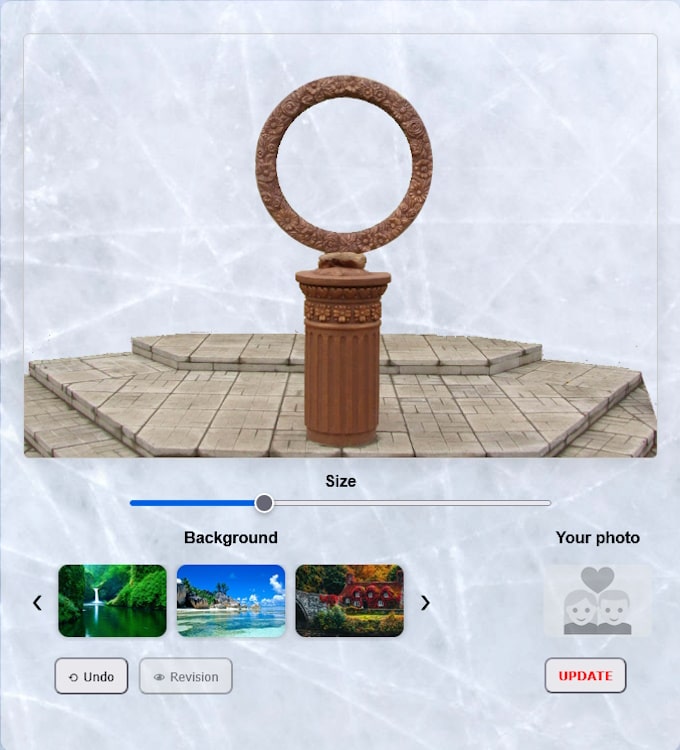 |
| Template |
Step 1: Choose background + your photo
Background: On the left is a gallery with pictures, select a background. Click on the arrows to view other options. If you want to use your own image, click on the picture with the text "Background" and select a file from your computer.
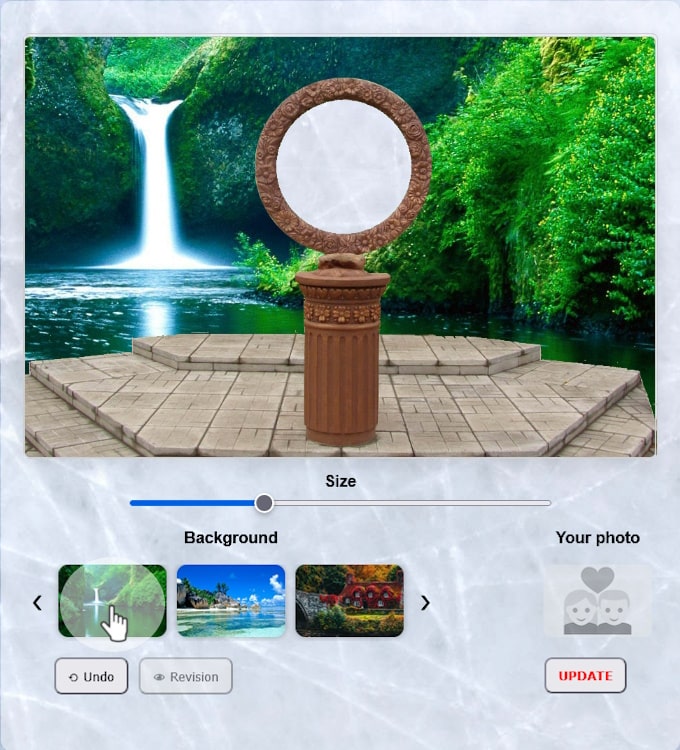 |
| Background |
Photo: On the right "Your photo" Click on it to upload a photo of the lovers.
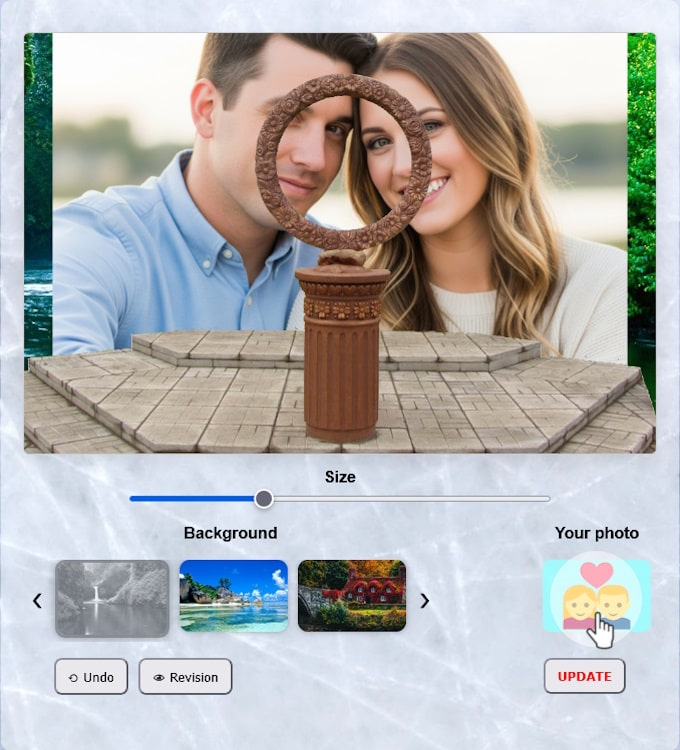 |
| Photo of lovers |
Step 2: Adjusting images on the canvas
Move images: You can move the picture on the large canvas (template with the "Love Stone" pedestal), drag it to the desired location.
Enlarge or reduce: Use the slider "Size" (it is located below the canvas) to make the selected picture larger or smaller.
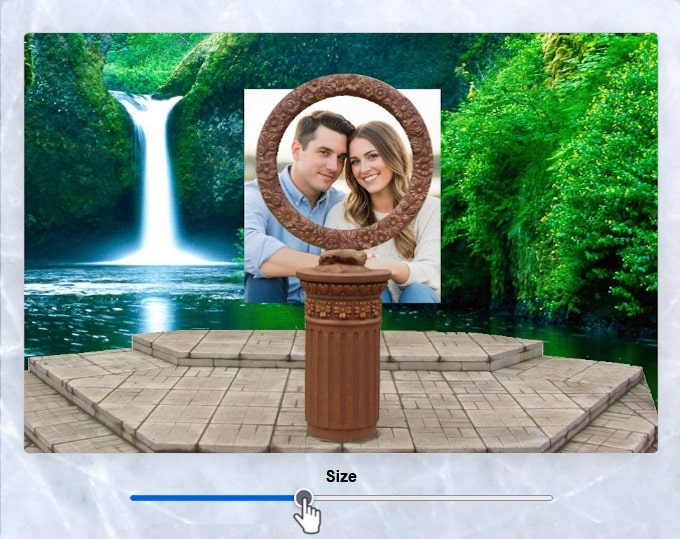 |
| Photo size settings |
Undo action: If something went wrong, click the button "⟲ Undo" — this will undo each previous action.
Step 3: Complete and save the collage
Preview: When everything is ready, click the button "👁 Preview" You will see what the final picture will look like.
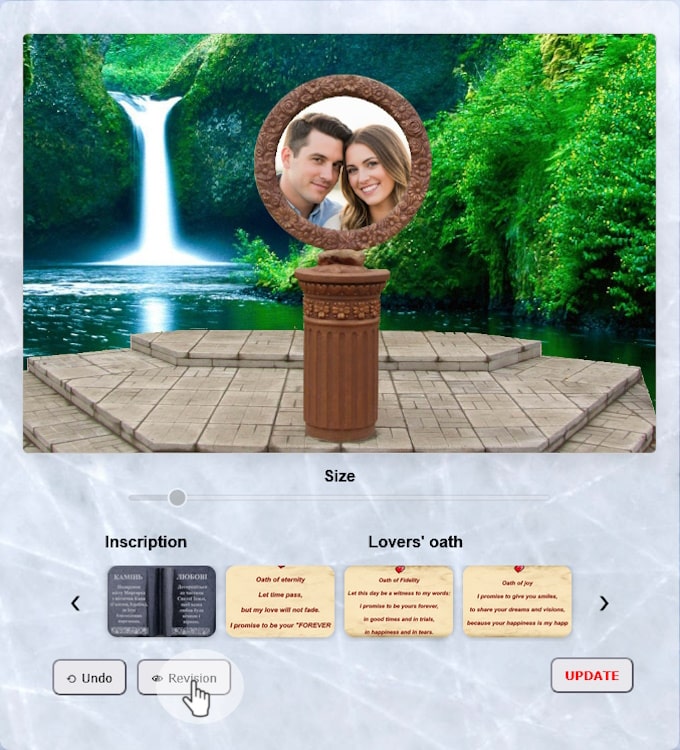 |
| Preview |
Inscription and vow: Optionally add pictures. In the new gallery you will find "Inscription" and pictures with vows, for example "Love", "Eternity", ... . Scroll with arrows and click on the one you like the most.
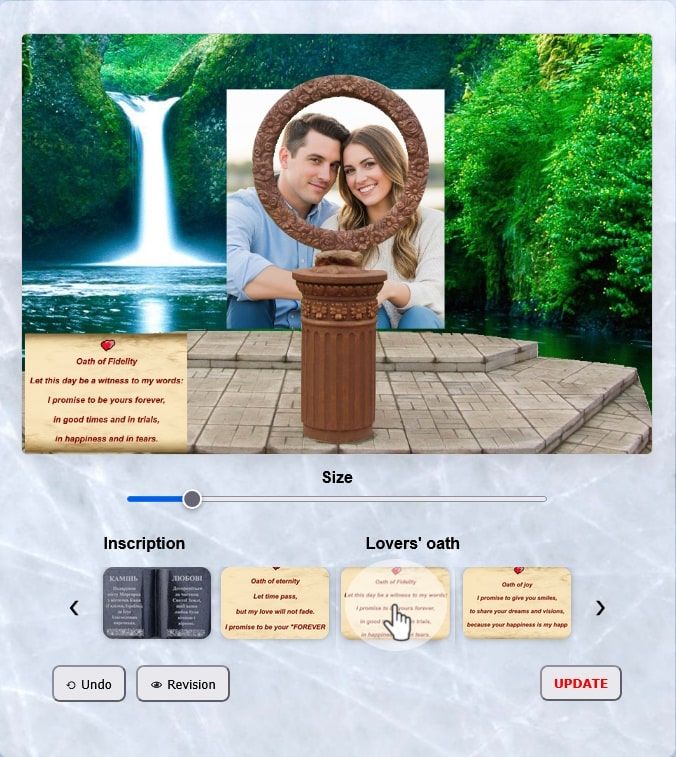 |
| Adding inscription and vow | |
Download: After preview, the button will change to "📥 Download" Click it to save the finished image to your device.
Start over: To start working on a new picture, click the button "UPDATE" The page will refresh and return to the initial view.